
As a PhD student, you will be required to read hundreds of journal papers, books, and reports before you submit your dissertation. Without a system, you will lose track of what you’ve read, forget where a quote came from, and waste hours re-formatting your reference list every time a supervisor asks for a different citation style.
That is what a reference manager is for. And Zotero is one of the best free options available to students.
This guide walks you through everything you need to start using Zotero for reference management: installing it, organising your library, saving references from the Web, and generating citations and bibliographies automatically in Word or Google Docs.
What is Zotero?
Zotero is a free and open-source reference management tool that helps you collect, organise, annotate, cite, and share research sources. It runs as a desktop app (Windows, Mac, Linux), syncs to Zotero’s cloud storage, and connects to your browser and word processor so citations move with you as you write.
Compared to paid tools like EndNote or subscription tiers of Mendeley, Zotero’s core functionality including unlimited local library storage, PDF/EPUB annotation, and citation generation in thousands of styles is completely free, which is why it remains the default recommendation for graduate students on a budget.
Zotero vs. Other Reference Managers
If you’re deciding between tools, here’s the short version: Zotero is free, open-source, and excellent at capturing sources directly from your browser.
Mendeley (owned by Elsevier) has stronger social/collaboration features but caps free cloud storage lower.
EndNote is powerful but expensive and aimed more at institutions.
For most PhD and Master’s students working independently, Zotero offers the best balance of cost, flexibility, and citation-style support.
How to Install Zotero
Zotero has gone through several major updates since it was first released, and the current version (Zotero 9) has a noticeably more modern interface than earlier versions including dark mode, a redesigned item pane, and a unified citation dialog. Installation, however, is still simple.
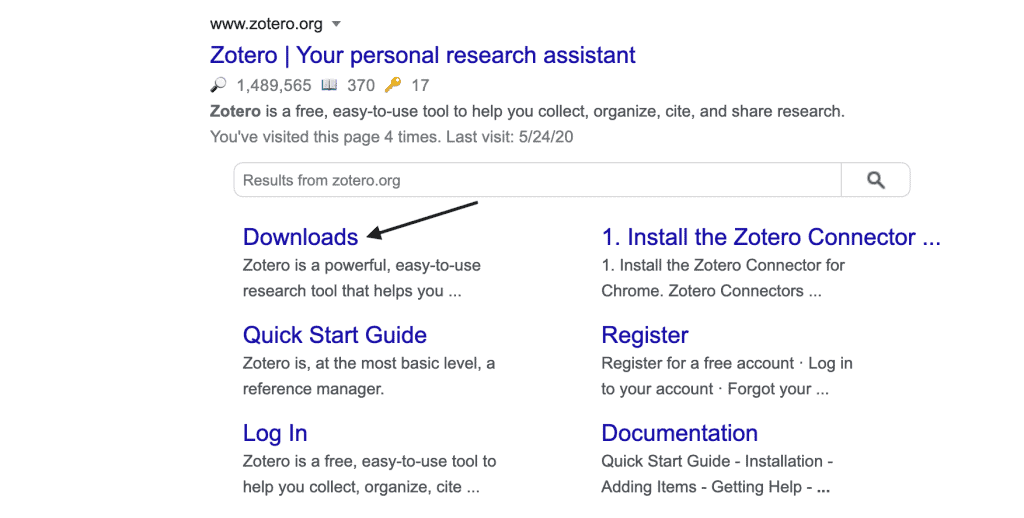
Step 1: Download Zotero
Go to https://www.zotero.org/ and then downloads.
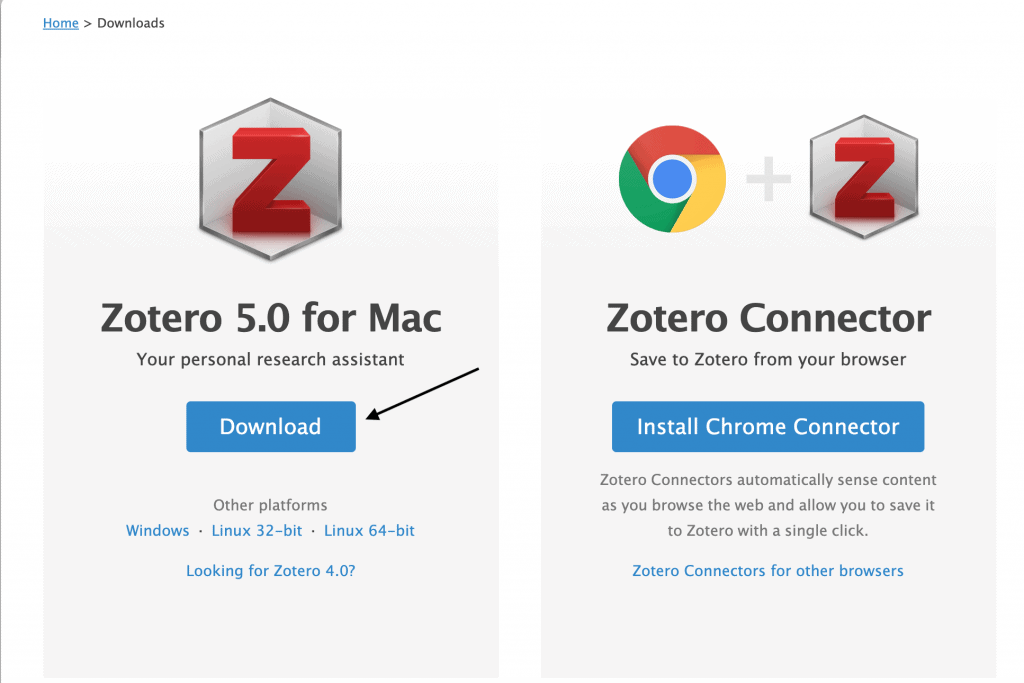
Step 2: Install the Zotero Desktop App
Run the installer and follow the prompts. Once it finishes, you’ll see a confirmation that Zotero has been installed successfully.
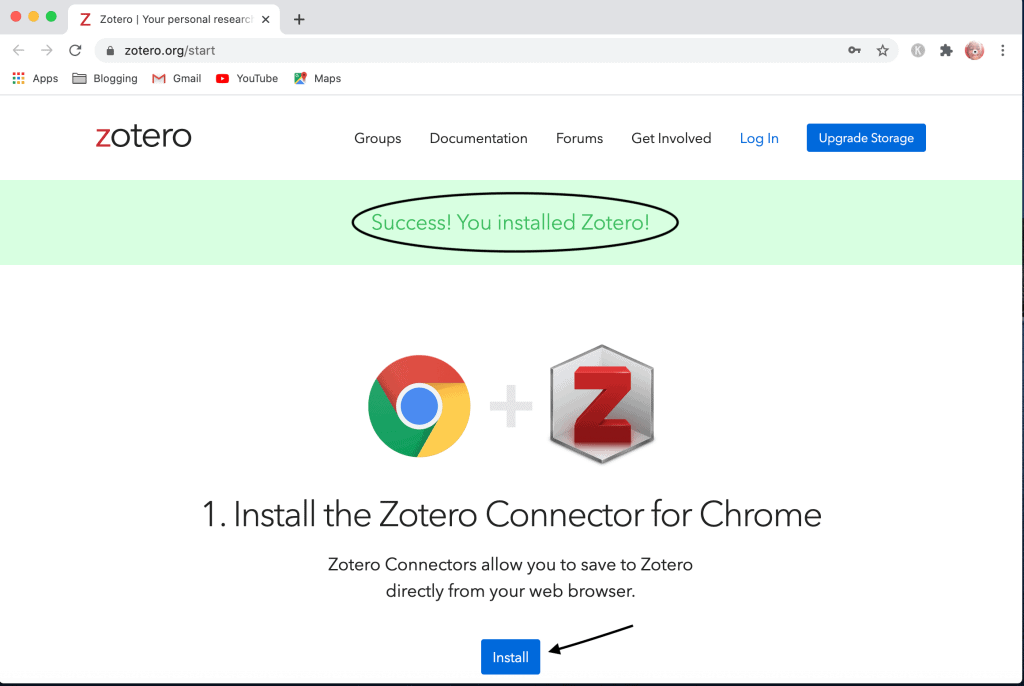
Step 3: Install the Zotero Connector for your browser (depending on the browser you use). The Connector for browser enables one to save documents directly from the browser to Zotero.
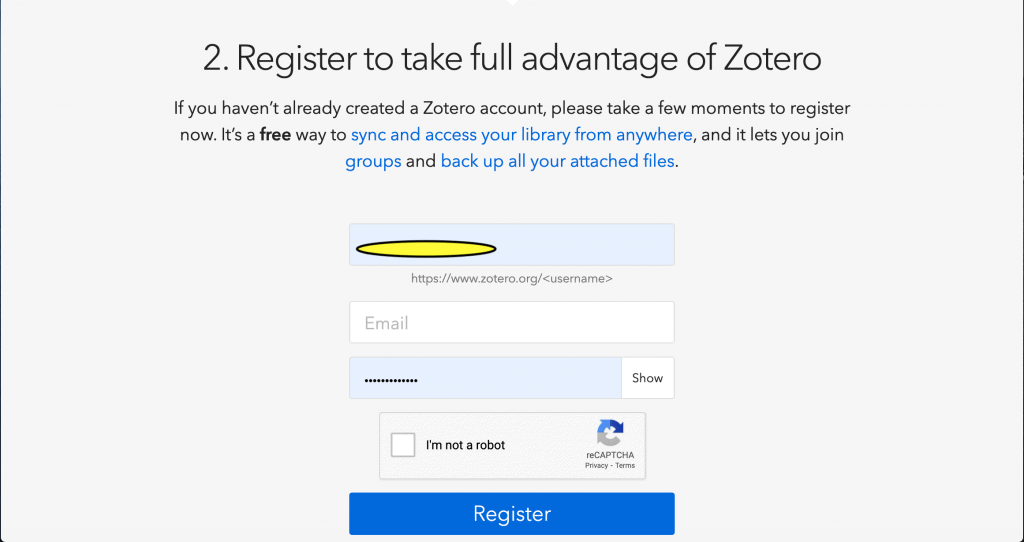
Step 4: Register for a free account. Once you enable sync, your Zotero library on your computer will link with your Zotero’s online account, thereby enabling you to access your work anywhere.
Step 5: Go through the documentation provided on the Zotero website.
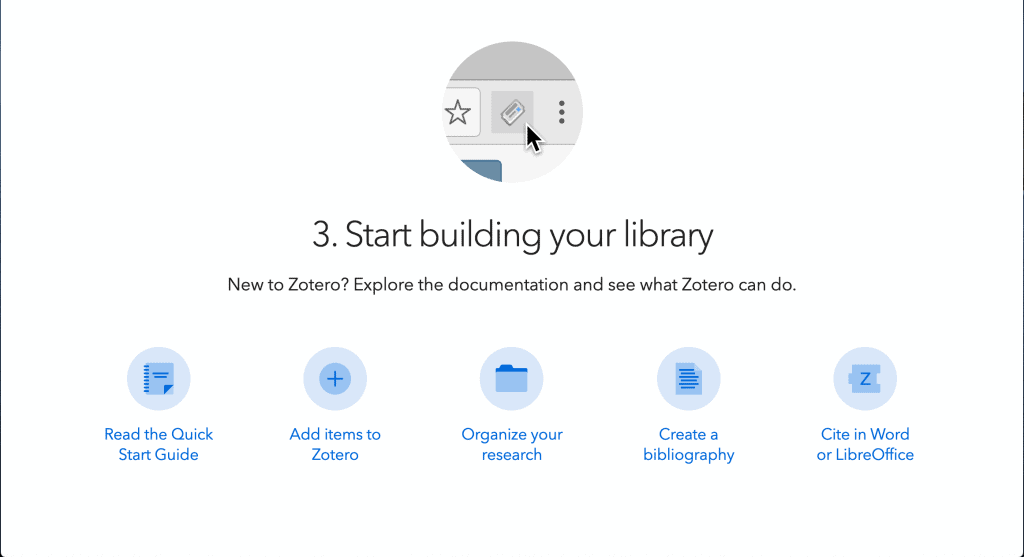
Step 6: Link Zotero with Word processor. This enables you to use Zotero for citation and creation of reference list directly into Word.
Go to Zotero icon on the top bar then from the drop-down menu, select Preferences > Cite > Word processors and install the add-in for the word processor you use.
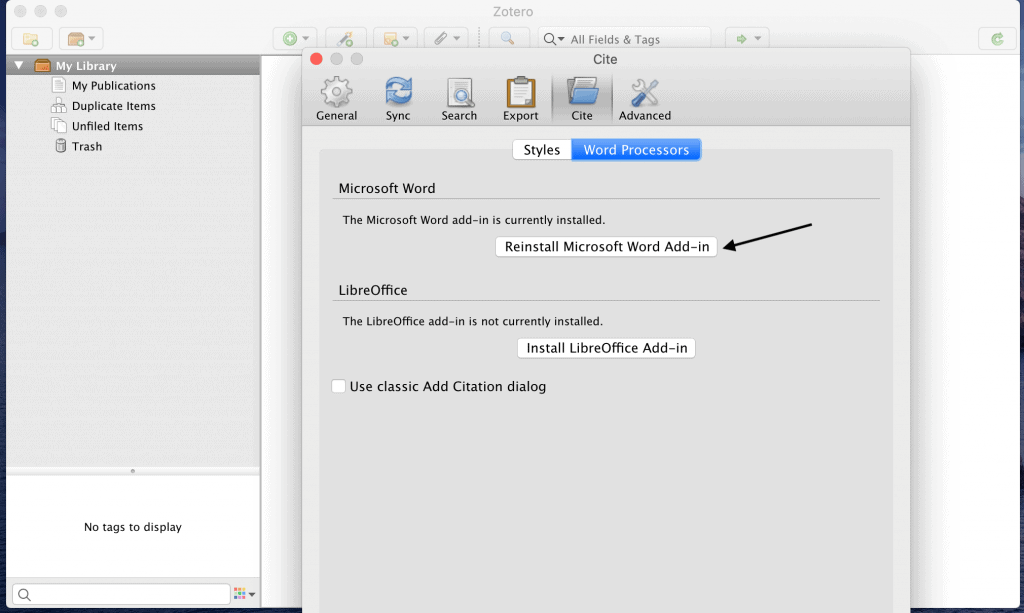
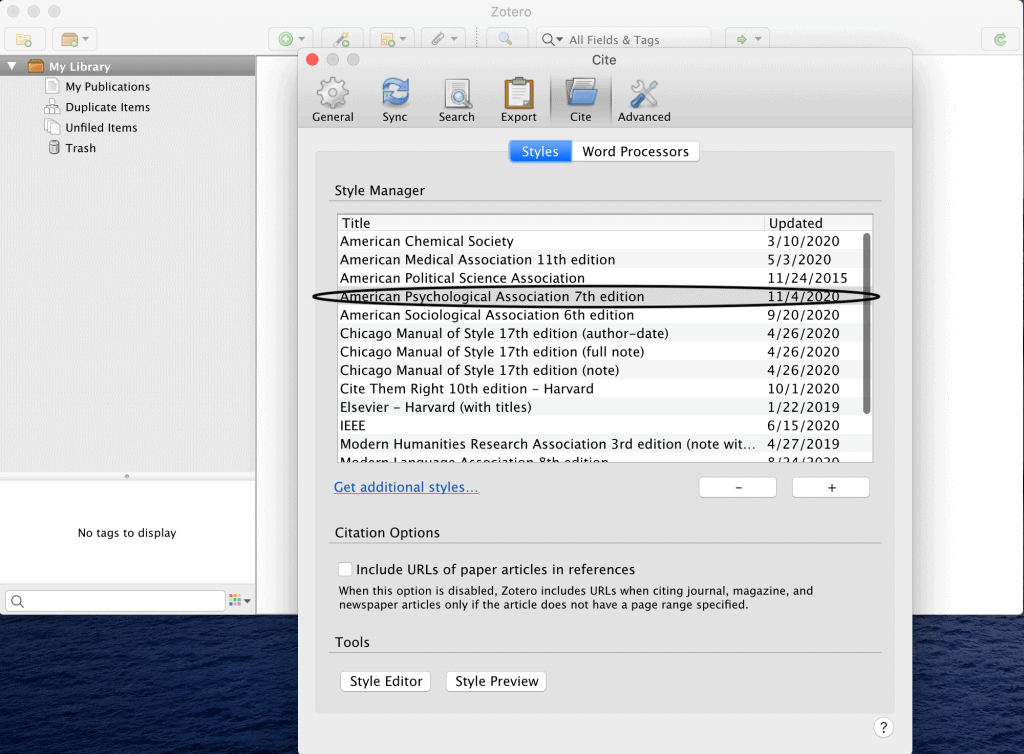
Once the word processor is installed, you need to specify the referencing style that you will use. In this case, the APA 7th edition has been selected:
Once you’ve completed the 7 steps, you are now ready to start using Zotero for research.
Creating Folders in Zotero
The first thing you want to do after installing Zotero is to create folders in which your documents will be stored.
Organizing your references in folders is a good and effective way of managing your references. It saves you time spent on looking for specific papers and also helps you compartmentalize your writing.
Depending on your dissertation topic, you can create different folders for the different chapters of your dissertation, for instance, introduction, literature review, research methodology, discussion of findings etc.
You can also create folders for your coursework (if your PhD programme has a coursework component) and a different folder for the dissertation work.
To create a new folder in Zotero:
- Open Zotero.
- On the left-hand pane, there is a folder-like icon which if you hover on you’ll see it named “new collection.”
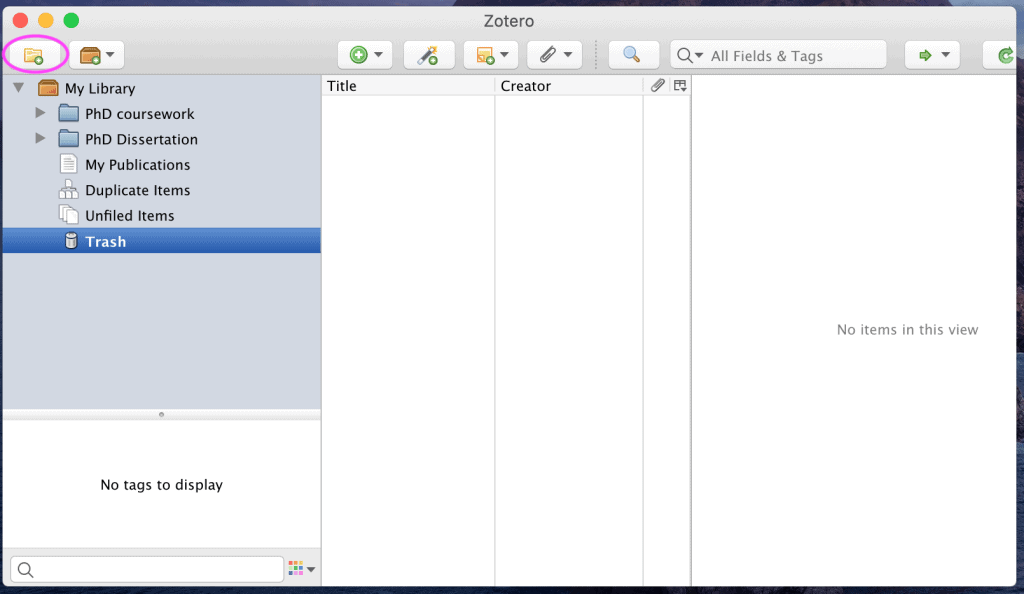
- Click on it. A new collection dialog box will open prompting you to give a name to the new folder, as shown below.
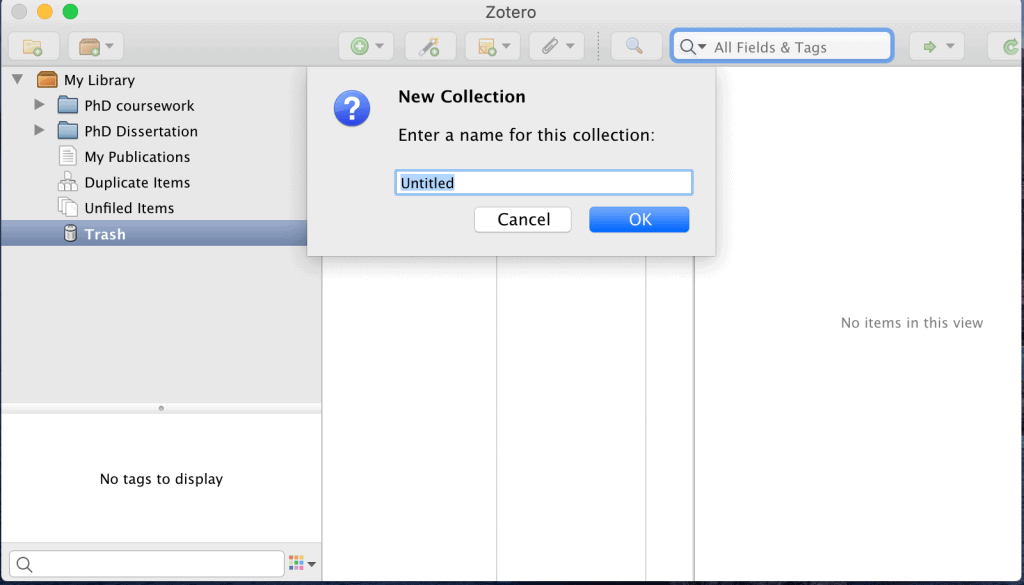
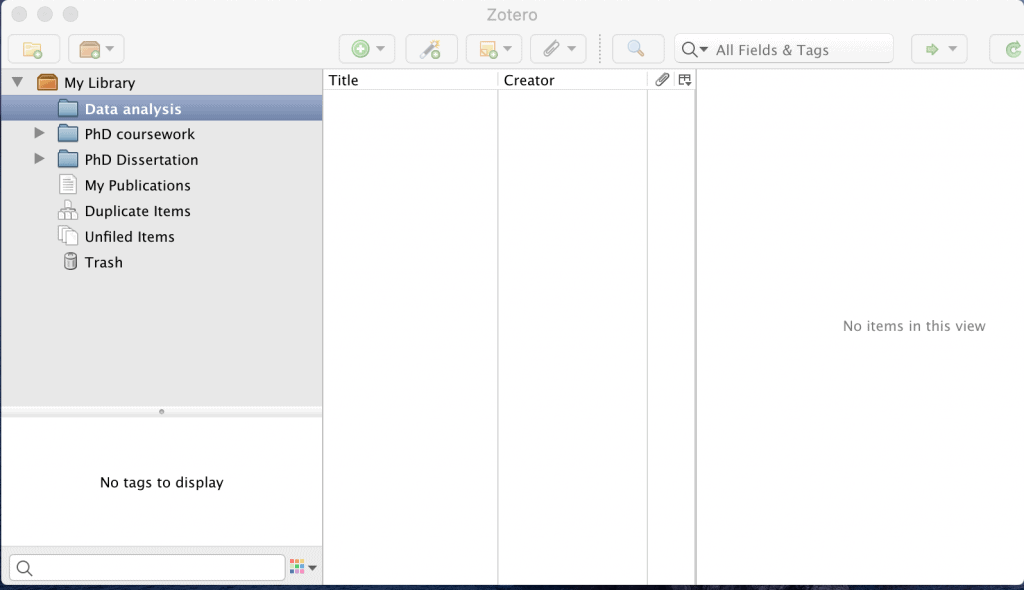
- Give the new folder the name you want to. In this case, I have named it “Data analysis.” The new folder will appear as the first item under the “My Library” folder, as shown below:
Saving References in Zotero Folders
There are two ways of saving references in your Zotero folders:
Drag and drop method
This method is used if the references/documents are already saved in your computer. All you need to do is:
- Open Zotero
- Click on the document of interest that’s already saved in your computer.
- Drag the document and drop it in the relevant Zotero folder.
Saving directly from the web browser
With Zotero, one does not need to save the references/documents to the computer first in order to save to the Zotero folders. You can save directly from your web browsers as you are searching for and reading documents of interest.
This method requires one to have downloaded the Zotero web browser connector.
To save directly from the web browser:
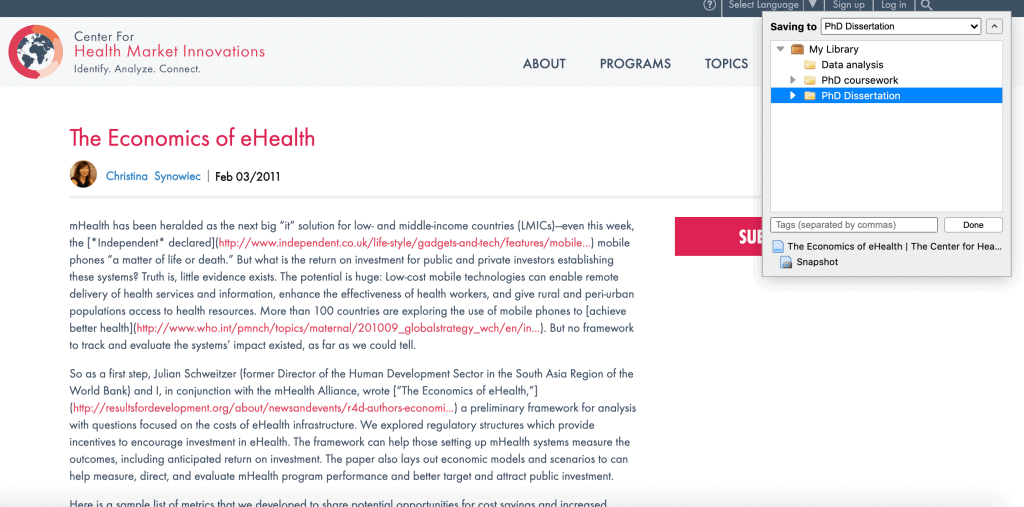
- Open the document in the web browser you use (e.g. Chrome). As an example I have opened a document called “The economics of ehealth” in Google Chrome.
- With the document open, go to the Chrome extensions on the far hand-right side and click on it. A drop-down menu will open with all the Chrome extensions that you have installed, one of which should be the Zotero connector, as shown below:
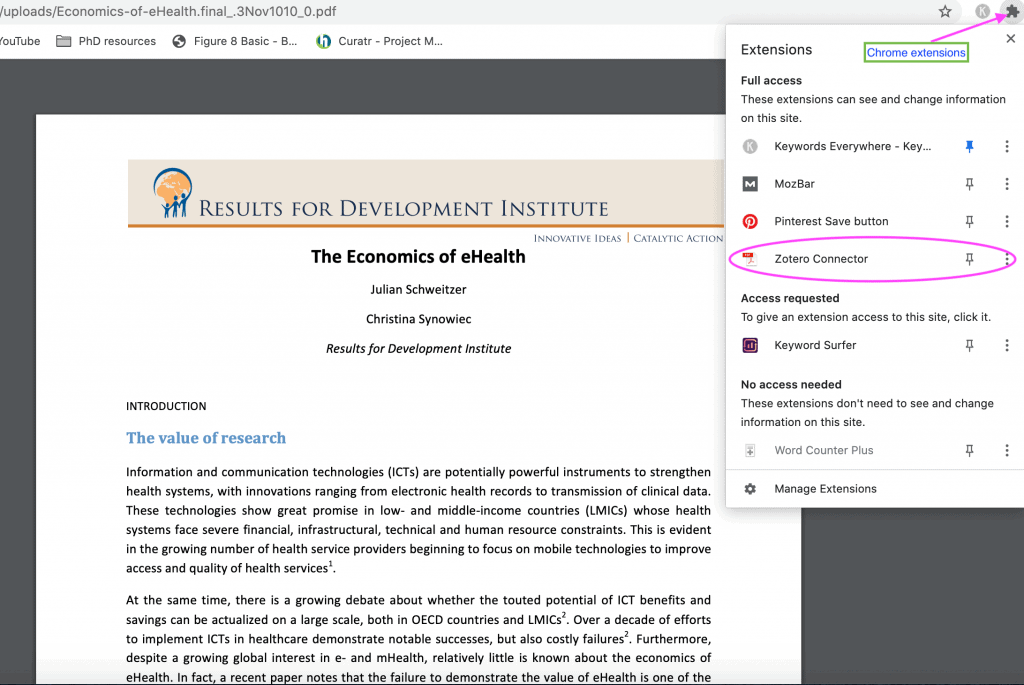
- Click on the Zotero connector. A dialog box will open prompting you to save the document to a folder of your choice.
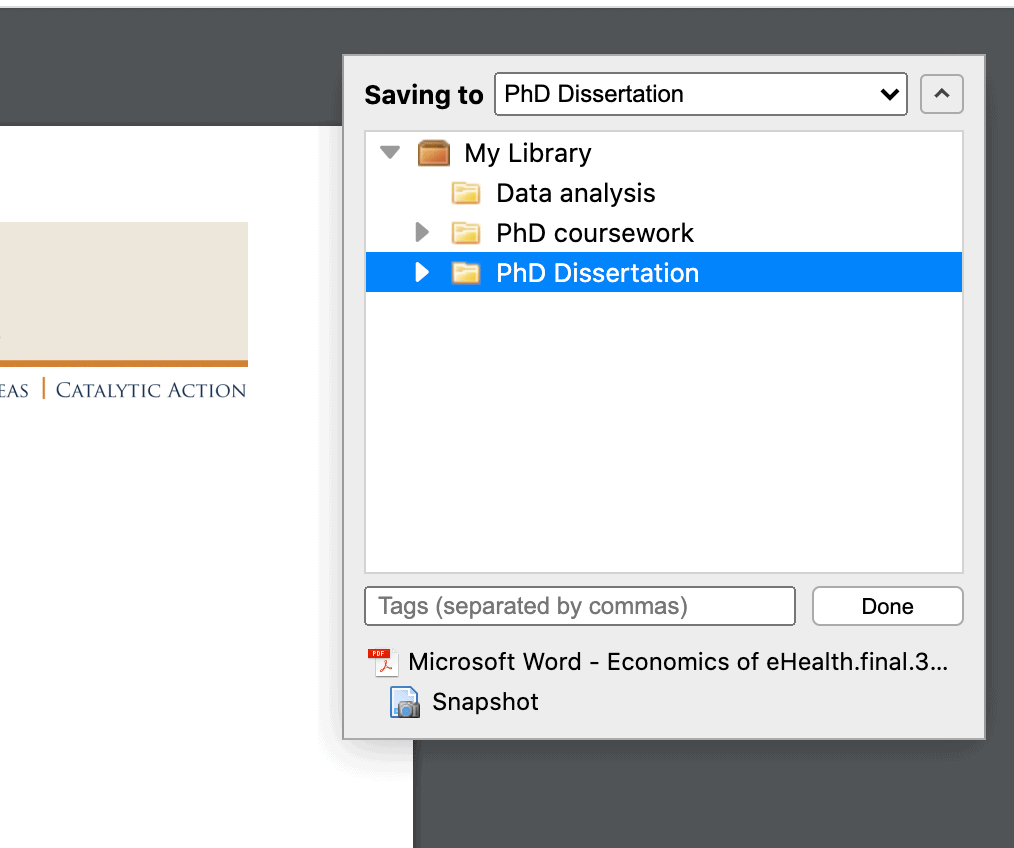
- Click done on the bottom right-hand side of the dialog box. The document will be saved to the folder selected. In this case it was saved in the PhD dissertation folder, as shown below:
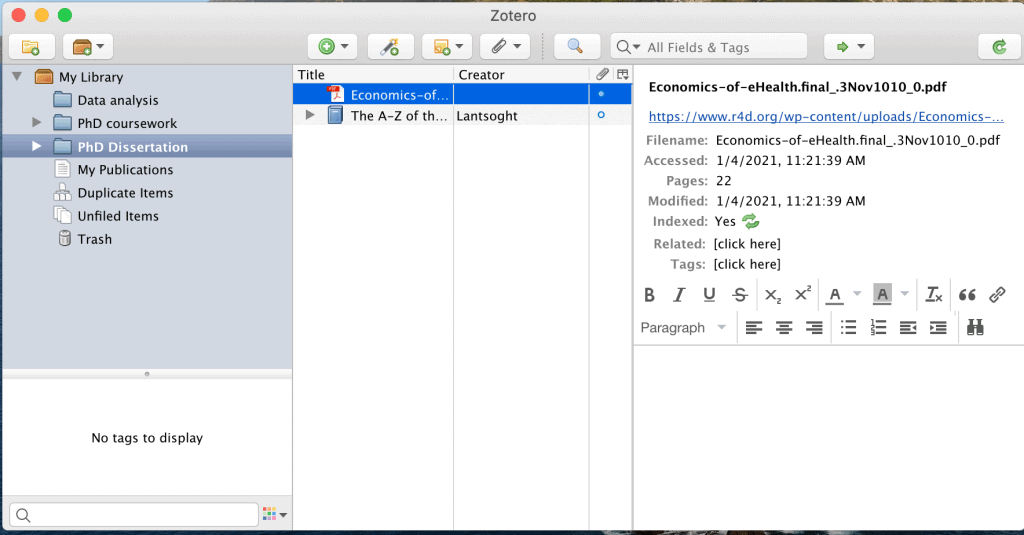
Documents saved using the Zotero connector need not be pdf files. Even web pages can be saved directly into Zotero without converting them into pdf first.
The following is an example of a web page saved directly into Zotero using the Zotero connector for Chrome:
To open documents saved in Zotero, you can either double-click on their title (in the centre pane), or right click then select open.
Using Zotero for In-Text Citations and Creating Bibliographies
Reference management is one of the hardest and time-consuming tasks for any doctoral student or researcher.
Luckily, reference management tools and softwares such as Zotero make the task much easier and manageable.
To successfully create in-text citations and bibliographies/reference lists, one must first specify the reference style that is allowed by their institution.
Second, the Zotero word processor add-in must be installed in their word processor.
To add an in-text citation using Zotero:
- Open the word document in which the citation will be added.
- Click the Zotero icon on the word document.
- On the left-hand side, you will see two icons. Select the first one named “add/edit citation.”
- A search bar with the Zotero icon will appear. Search the name of the author or the title of the document you want to cite from your Zotero library and select it.
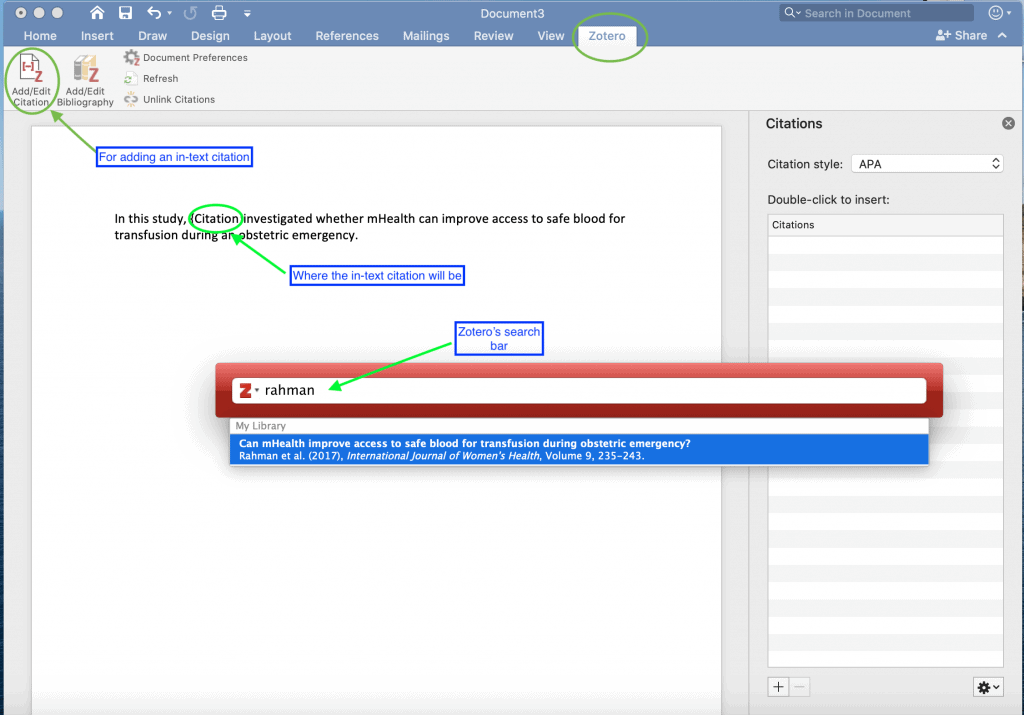
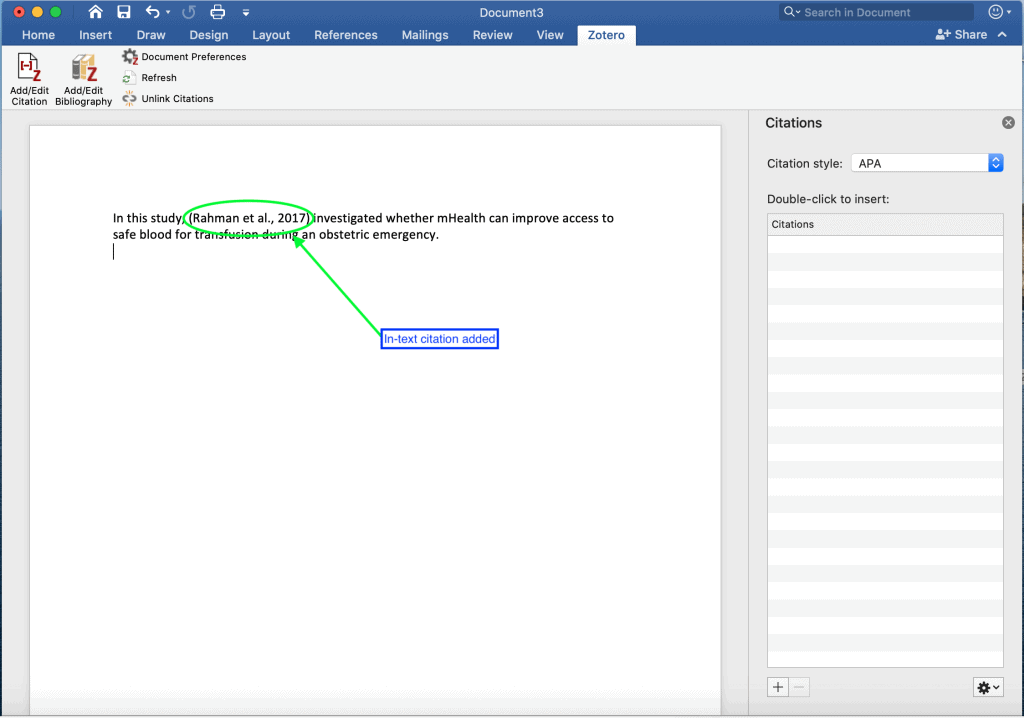
- This action will bring the name of the authors of the document and the citation will be automatically added to the document where the cursor is placed.
To add a bibliography at the end of the document:
- Open the word document in which the citation will be added.
- Click the Zotero icon on the word document.
- On the left-hand side, select the second icon named “add/edit bibliography.”
- Zotero will automatically add the corresponding bibliographies for all the in-text citations.
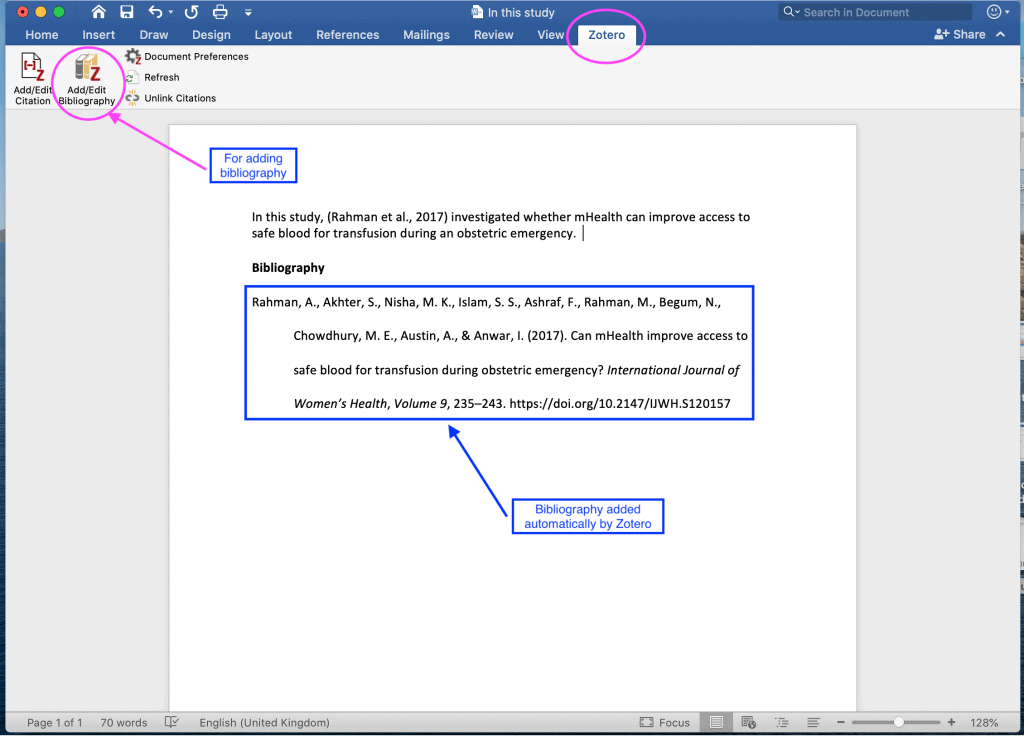
It is important to note that while Zotero will do a pretty good job at automatically adding in-text citations and bibliographies, it is the responsibility of the student to identify and correct any errors made in the citations and bibliographies. For instance, errors in the placement of brackets, italicising the references, placement of commas etc.
Hence making reference to the reference style guides should be done each time the student is editing his/her work.
Final Thoughts on Using Zotero for Reference Management
In conclusion, Zotero is a powerful tool for research because it enables one to add documents, add in-text citations and create bibliographies automatically. In the process, it saves the user much time and effort that could be spent if the tasks were to be done manually. Zotero is therefore worth learning by every student and researcher.
Related articles
How To Use Mendeley For Reference Management (An Illustrative Guide)
How to Use RefWorks for Reference Management (A Detailed Guide)
How to Use Citavi for Reference Management (A Detailed Guide)
How to Use EndNote for Reference Management (A Comprehensive Guide)
Pingback: Academic Referencing 101 (The What, Why and How) - Resourceful Scholars' Hub
Pingback: How to Read Journal Papers Quickly and Effectively - Resourceful Scholars' Hub
Pingback: How To Use Mendeley For Reference Management (An Illustrative Guide) - Resourceful Scholars' Hub
Pingback: How To Write An Annotated Bibliography (Plus APA Sample) - Resourceful Scholars' Hub
Pingback: How to Use EndNote for Reference Management (A Comprehensive Guide) - Resourceful Scholars' Hub
Pingback: How to Write Effectively Using Scrivener (A Comprehensive Guide) - Resourceful Scholars' Hub
Pingback: How to Use Citavi for Reference Management (A Detailed Guide) - Resourceful Scholars' Hub
Pingback: How to Use RefWorks for Reference Management (A Detailed Guide) - Resourceful Scholars' Hub
Pingback: How to Use BibTex for Reference Management (A Beginner's Guide) - Resourceful Scholars' Hub