

How do you enter data into Stata? In this post, I will discuss and illustrate three main methods of data entry in Stata: the manual entry method, the import method, and the copy and paste method.
Manual entry
You can enter data manually into Stata by using the Data Editor (Edit) tool.
Manual entry of data into Stata is only possible for small datasets, as it can be time-consuming and prone to errors.
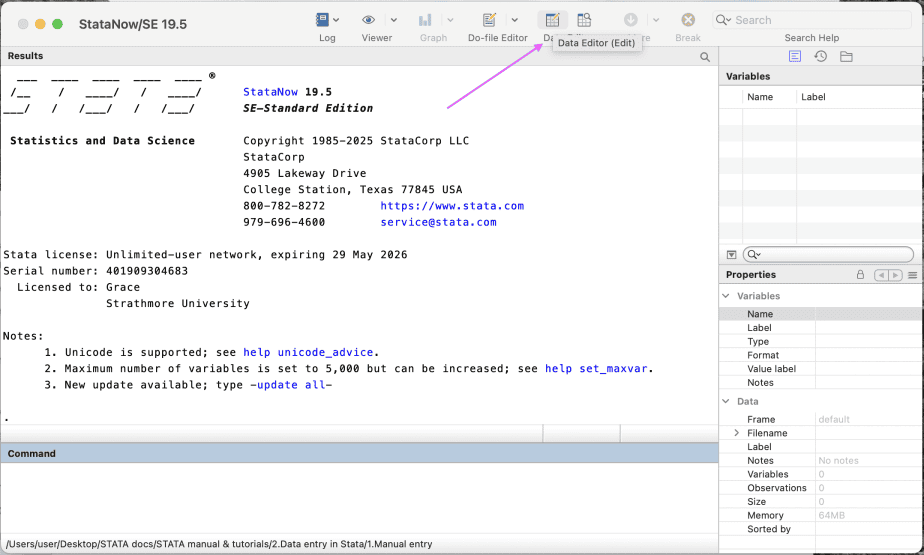
To manually enter data into Stata, open Stata, go to Stata Toolbar, then click on Data Editor (Edit).
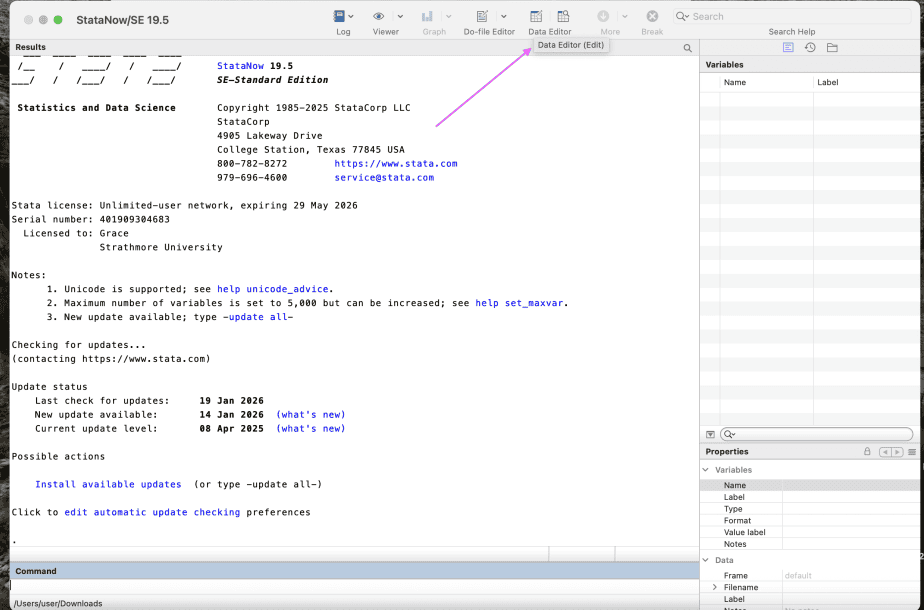
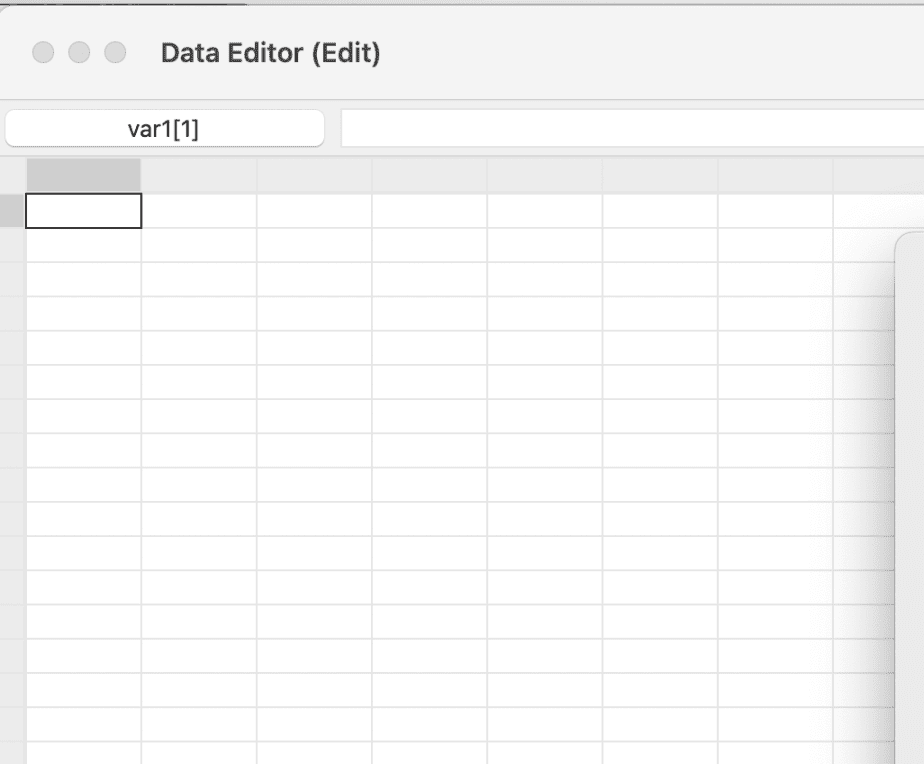
This will open the Stata spreadsheet. The rows in the spreadsheet represent individual observations (for instance, individual respondents) whereas the columns represent the variables.
Type in the data you want to enter starting with the first blank box.
When you first type in the data, the columns headers will be named var, for instance, var1 representing variable 1, var2 representing variable 2 etc.
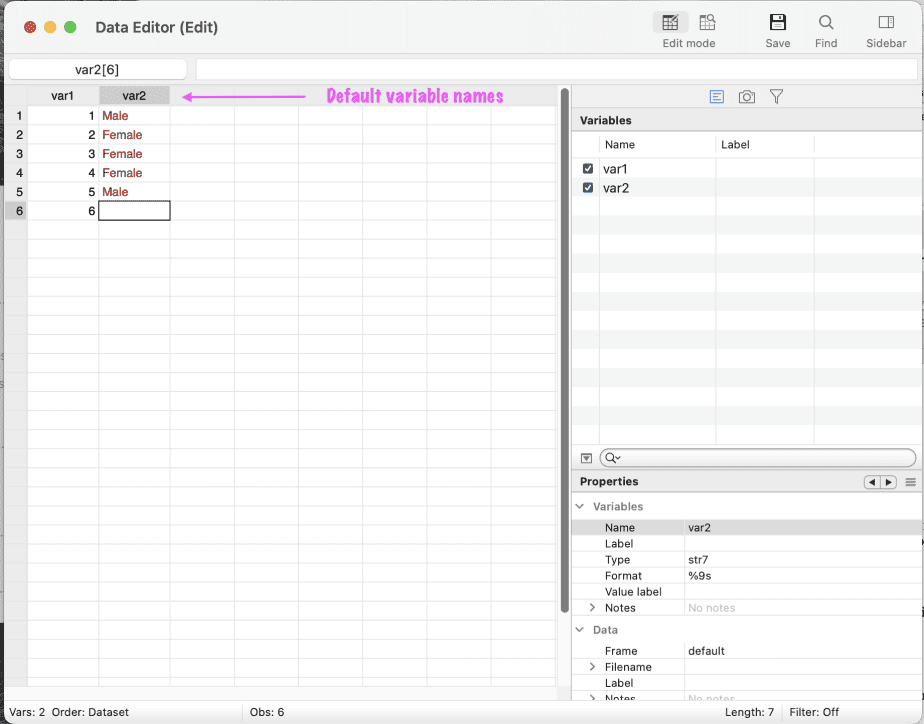
You should replace these default variable names with the actual variable names in your dataset, for instance, age, gender, education etc.
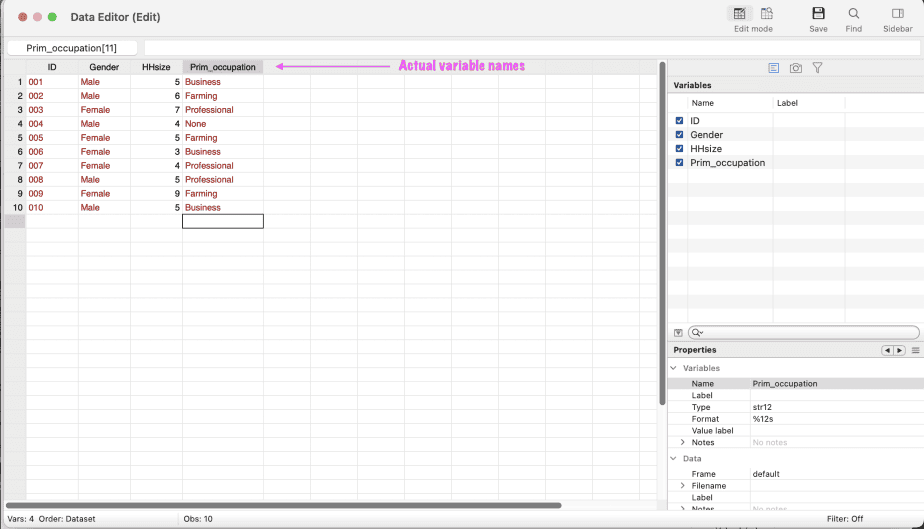
Once you are done inputting data into Stata, save the dataset using an appropriate name and in the appropriate location.
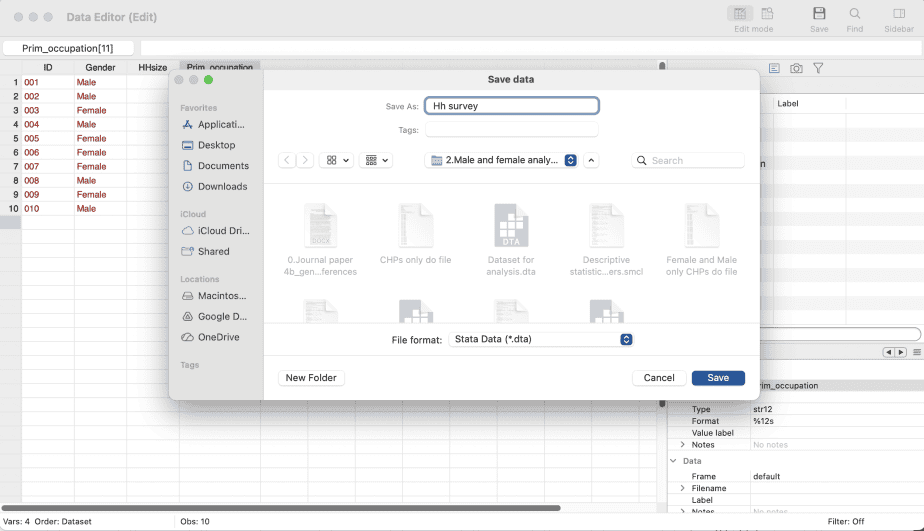
Stata data files are saved as .dta.
Importing data from other programs (Excel, SPSS, and text data)
The manual data entry method is time-consuming, especially for large datasets, and is also prone to errors. It is therefore not recommended for large datasets.
The alternative method of data entry in Stata is importing the data from other programs.
The programs supported by Stata include Microsoft Excel spreadsheets, Text data (different formats), SPSS data, SAS data, JDBC data source, ODBC data source, among others.
In the following sections, I will illustrate how to import data from Excel spreadsheets, from an SPSS data file, and how to import text data.
1. Importing an Excel file
To import data from an Excel spreadsheet, open Stata, click the File menu, and then click the import option.
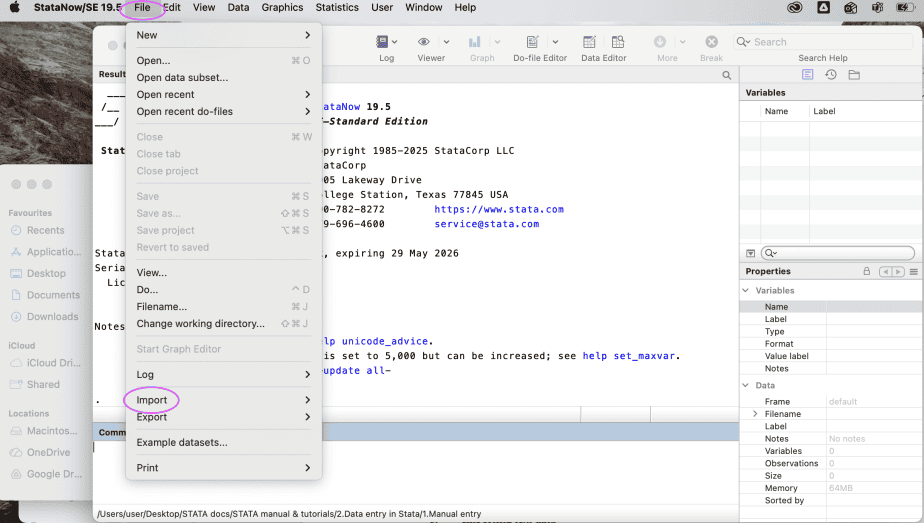
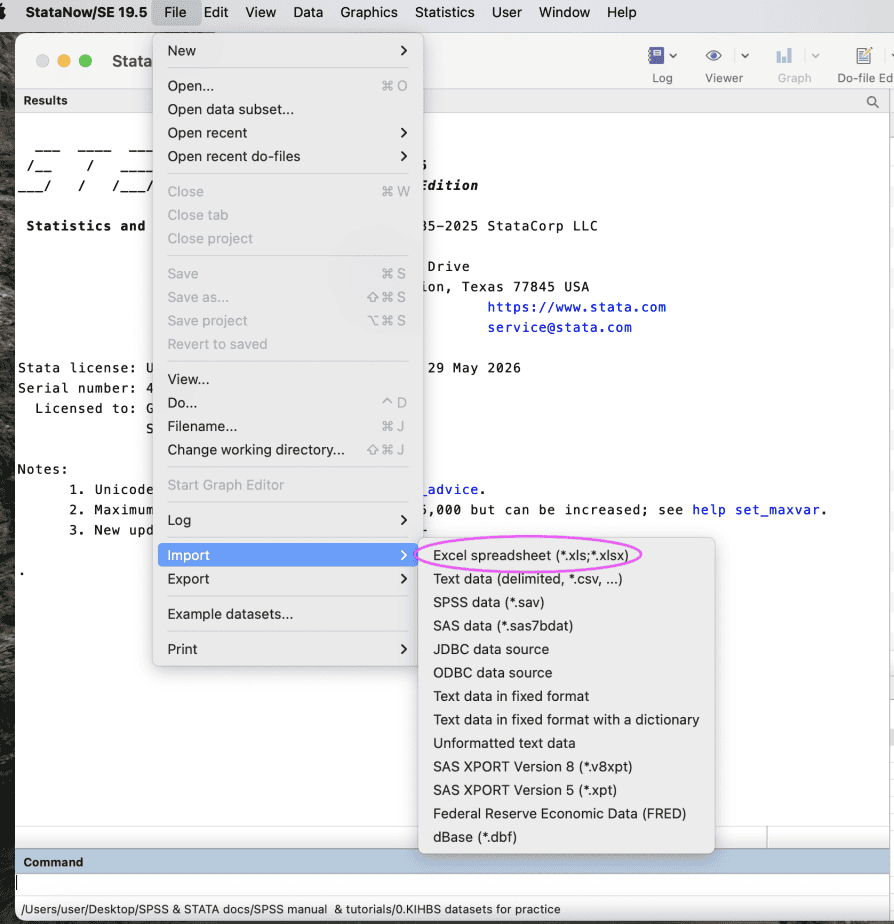
From the options provided, select “Excel spreadsheet”
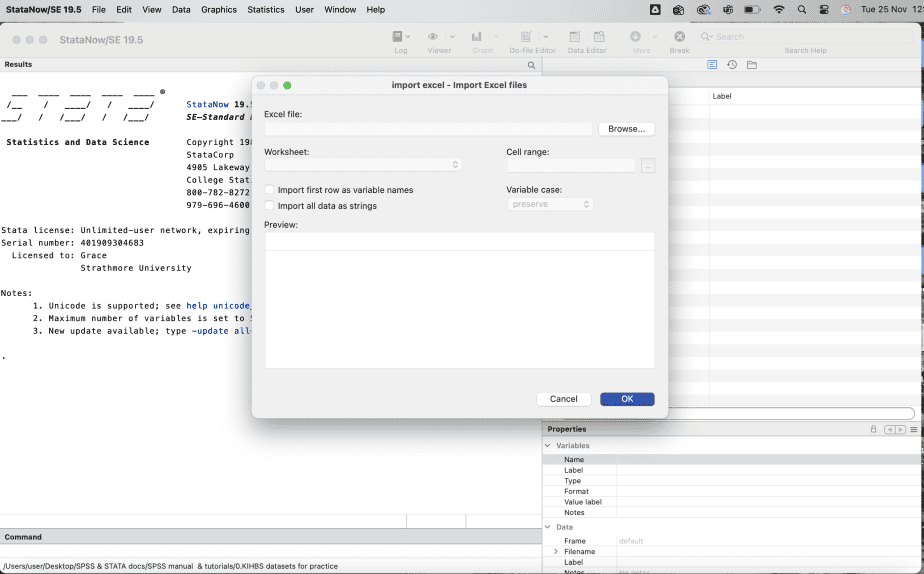
The “import Excel files” dialogue box will open. Click on the browse button to select the Excel file which contains the data you want to import.
Select the file and click “Open”.
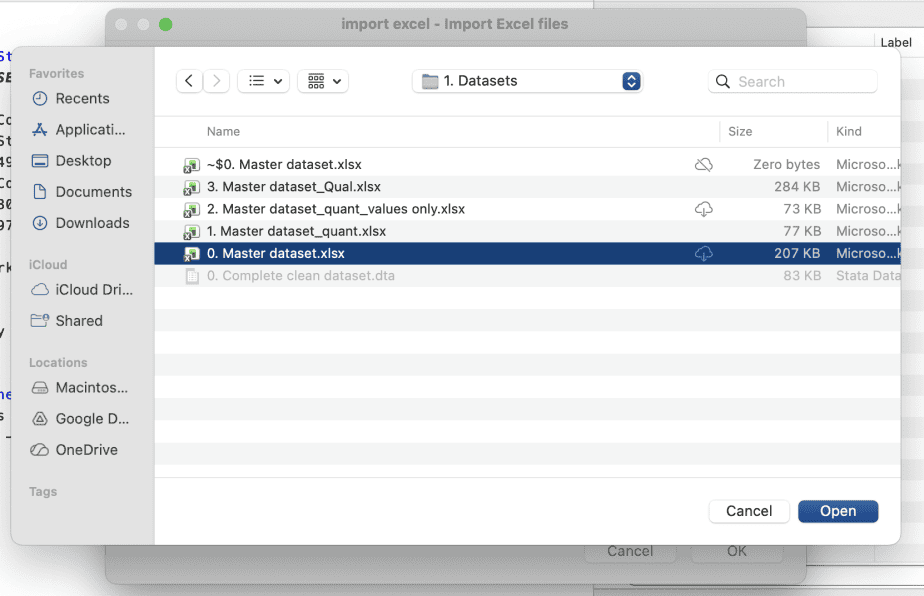
If the file has more than one worksheet, specify the worksheet that you want to import the data from.
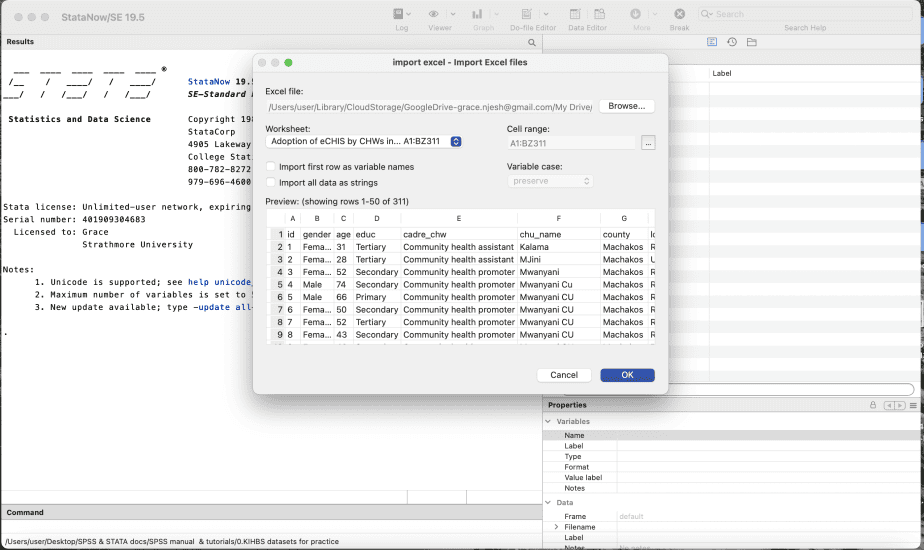
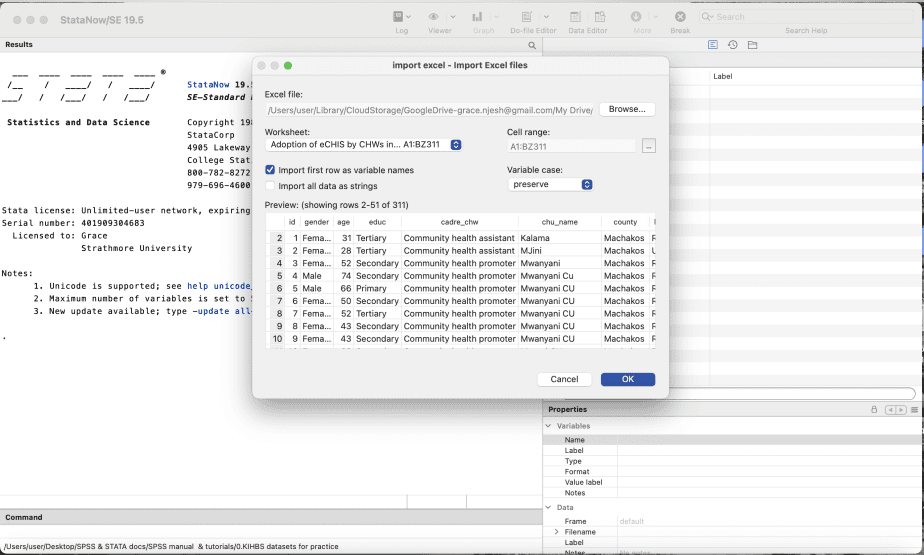
Make sure to check the option “Import first row as variable names.” This will ensure that the first row in the Stata file contains the variable names as they appear in the Excel spreadsheet. Then click OK.
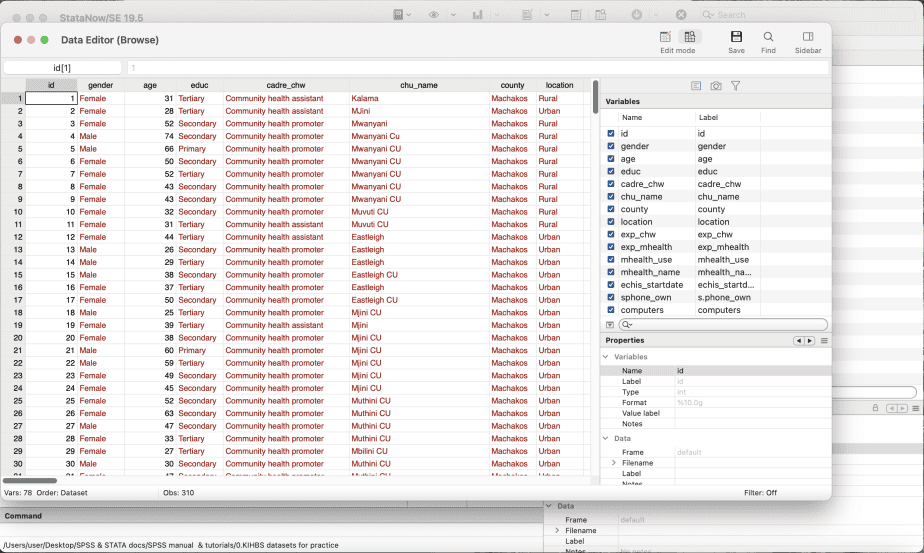
The data will now be imported into Stata. To view the data, click on Data Editor (Browse).
Command syntax for importing an Excel file
The command syntax for importing the Excel file is:
import excel “file name.xlsx”, sheet(“sheet name”) firstrow. The option firstrow tells Stata to treat the first row as the variable names
2. Importing an SPSS file
To import data from an Excel spreadsheet, open Stata, click the File menu, and then click the import option.
From the options provided, select “SPSS data”
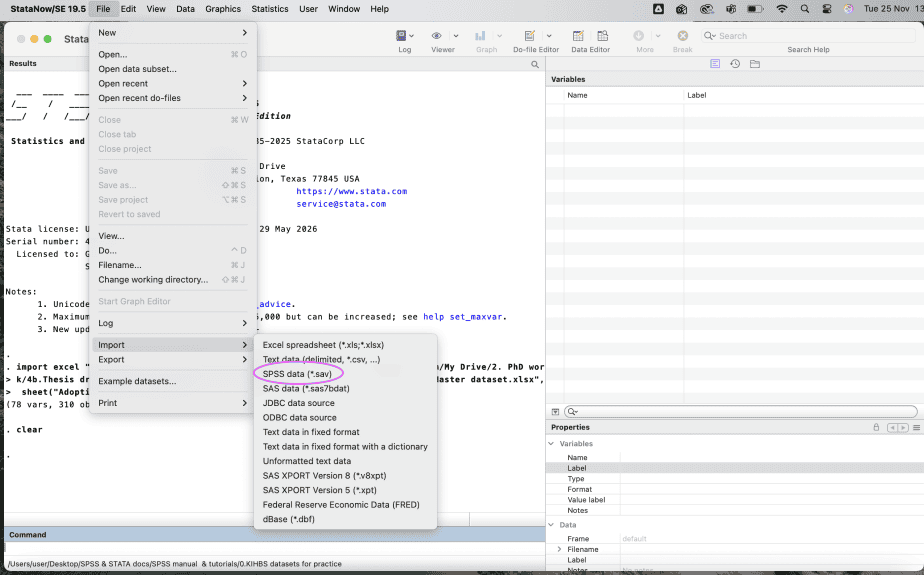
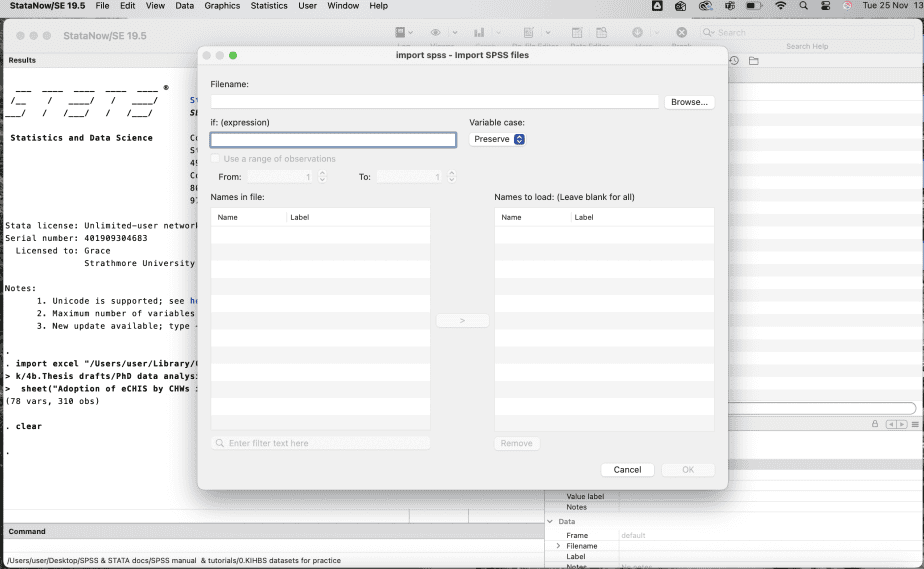
The “import SPSS files” dialogue box will open. Click on the browse button to select the SPSS file which contains the data you want to import.
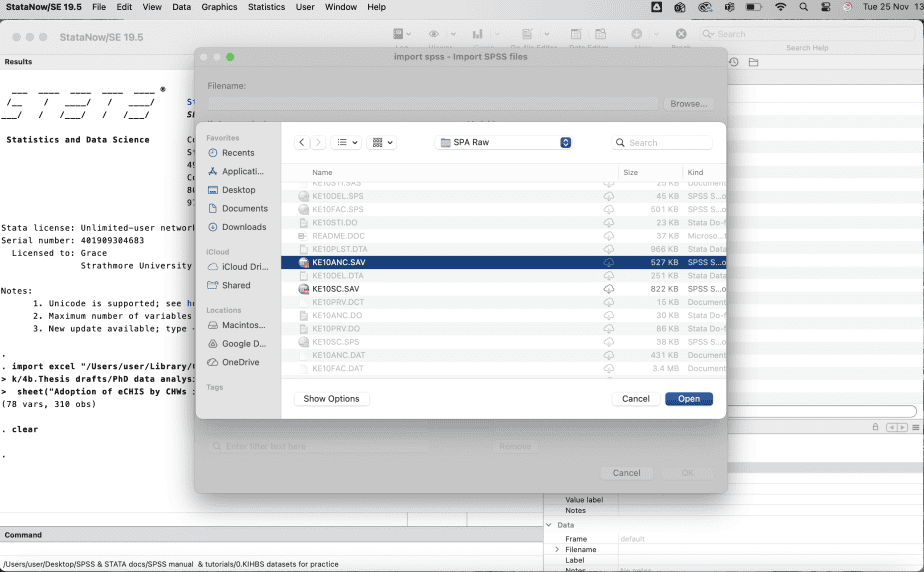
Select the file and click “Open”.
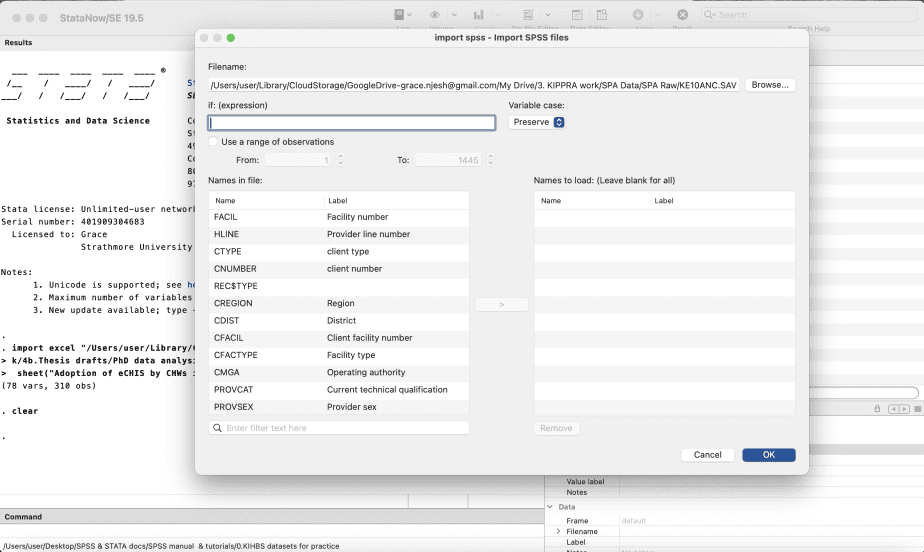
Then click OK.
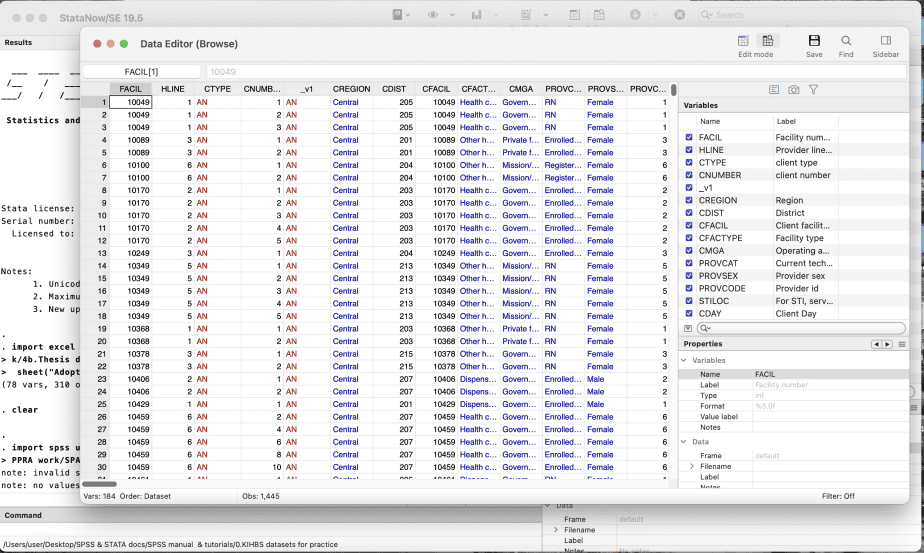
The data will now be imported into Stata. To view the data, click on Data Editor (Browse).
Command syntax for importing an SPSS file
The command syntax for importing an SPSS file is:
import spss using “filename”
3. Importing text data
Stata also allows you to import data that is saved in text format, for instance, .txt or .csv.
To import text data into Stata, open Stata, click the File menu, and then click the import option.
From the options provided, select “Text data.”
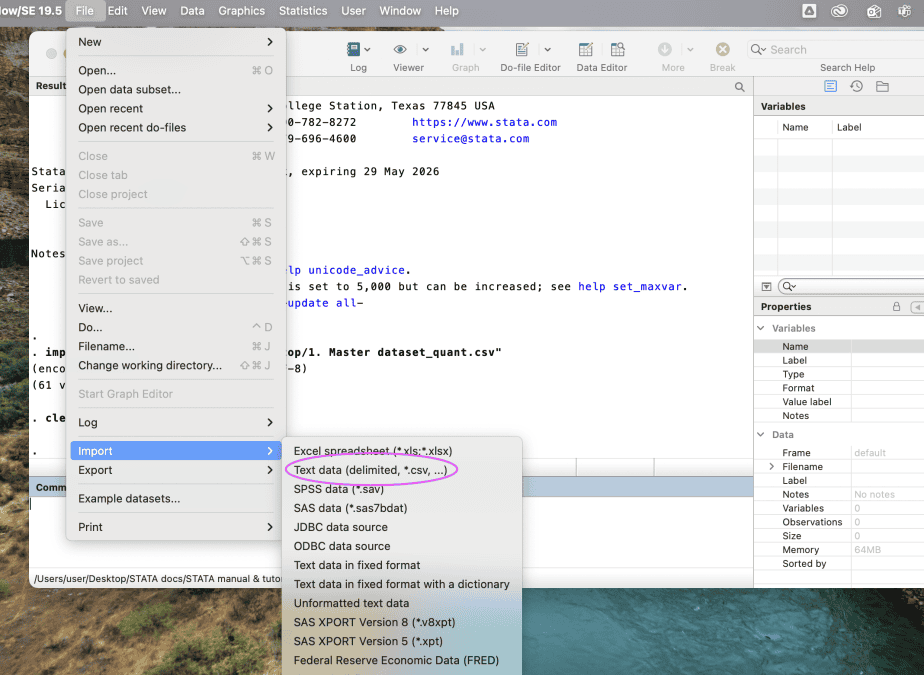
The “import delimited text data” dialogue box will open. Click on the browse button to select the file to import.
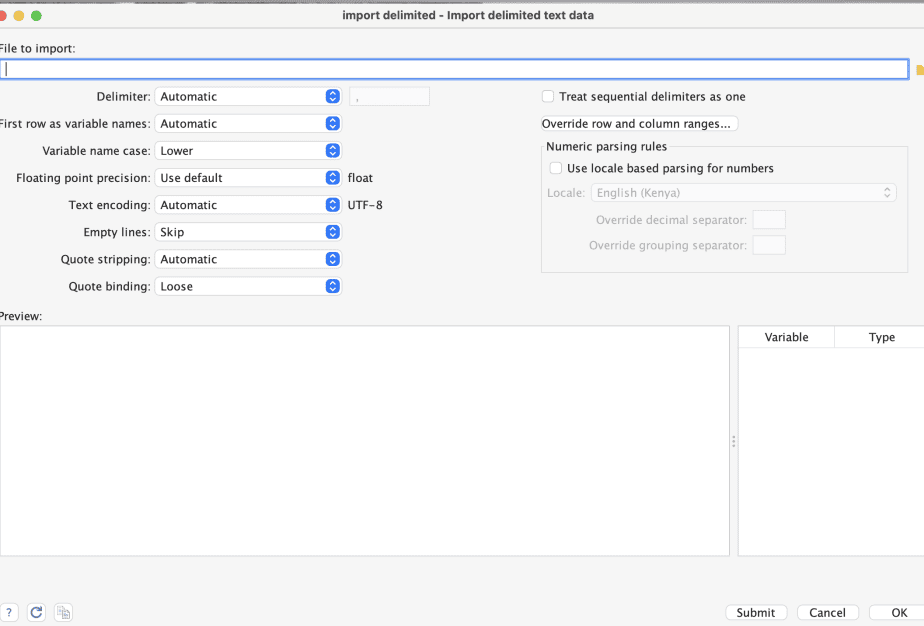
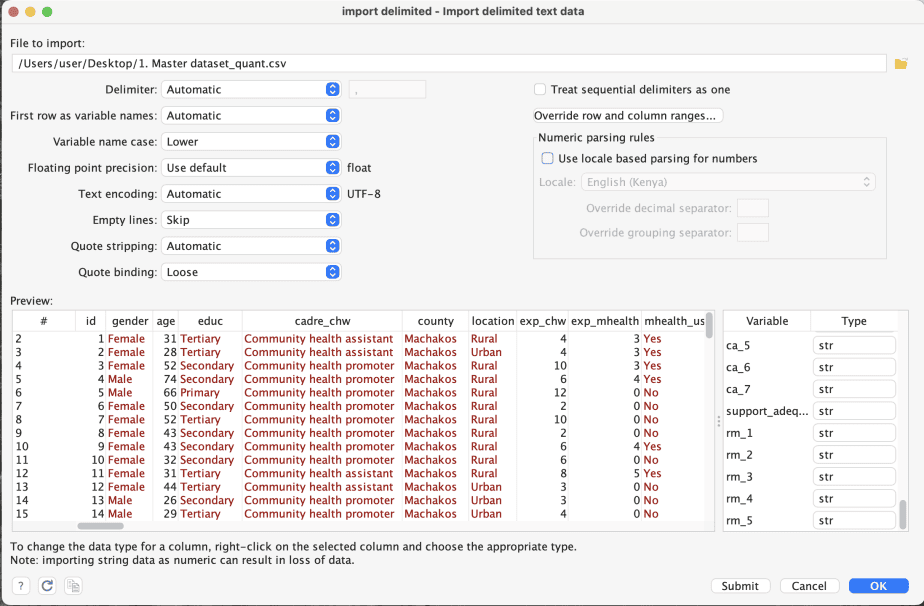
Then click OK.
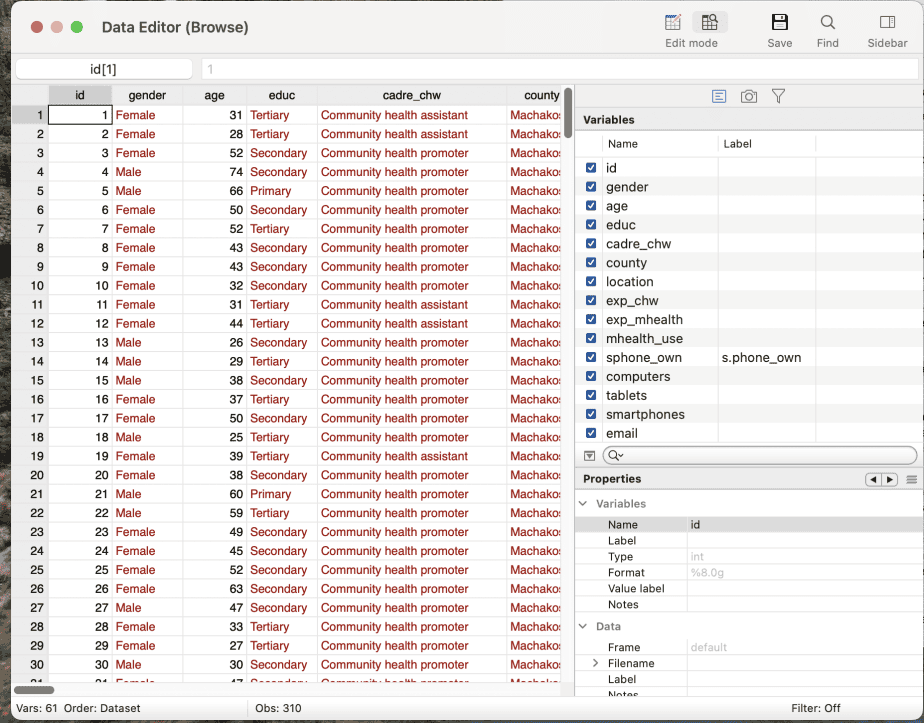
The data will now be imported into Stata. To view the data, click on Data Editor (Browse).
Command syntax for importing an SPSS file
The command syntax for importing an SPSS file is:
import delimited “filename.”
Copying and pasting data
Besides manual data entry and importing data into Stata, you can also copy data from a different program and paste it into Stata.
For demonstration, I will use data saved in Excel.
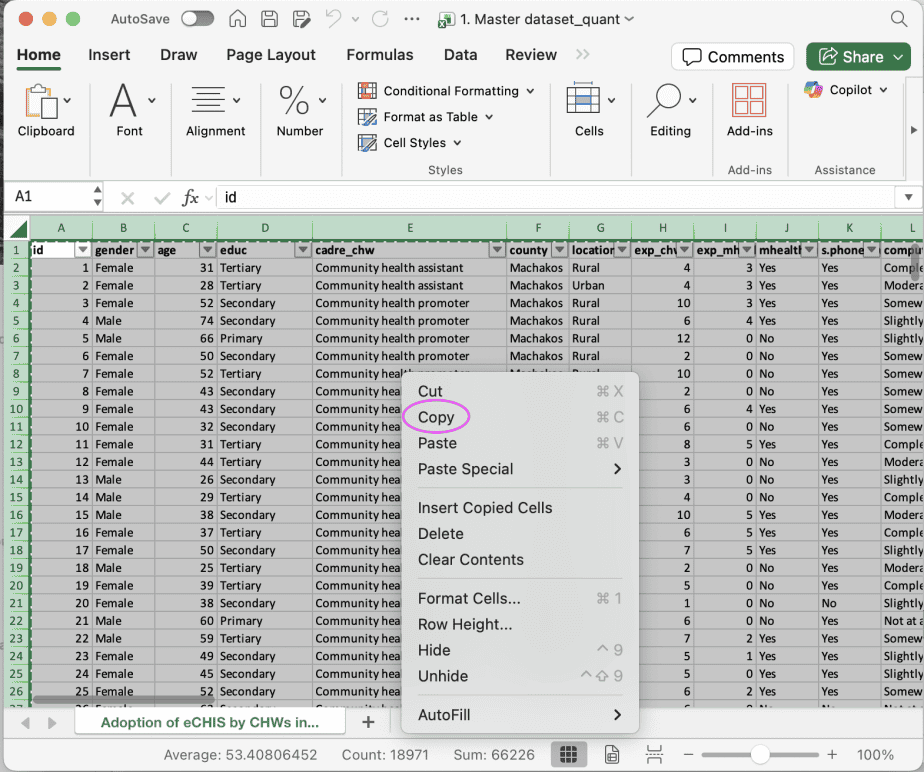
Open the Excel file with the data and copy the data you would like to use.
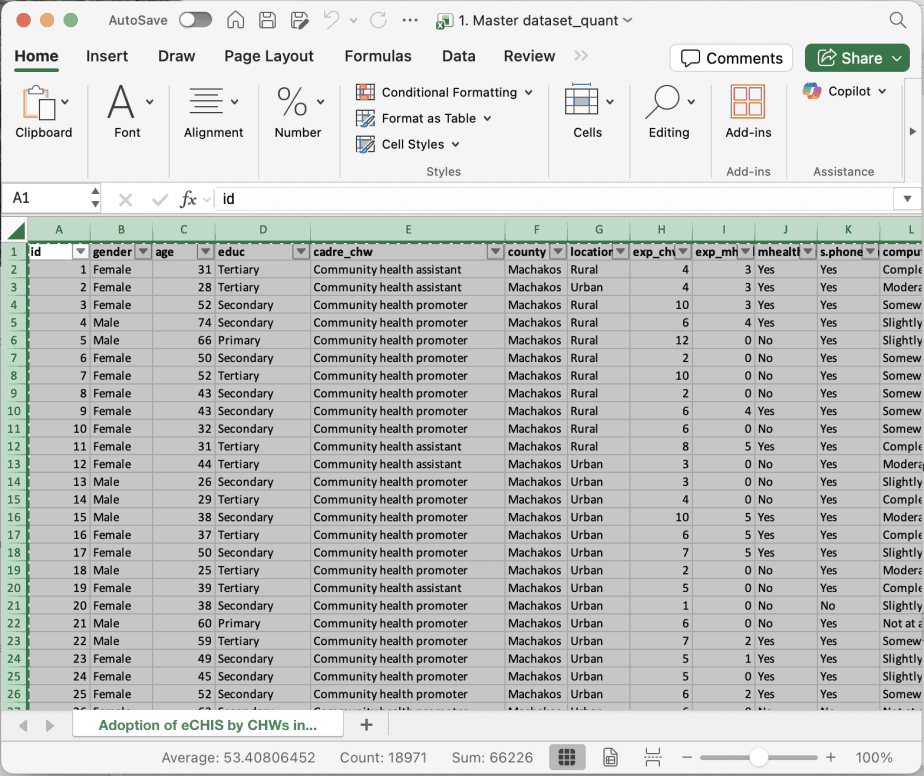
Right click on the data and select “copy”
Open Stata, then select Data Editor(Edit)
The Data Editor spreadsheet will open.
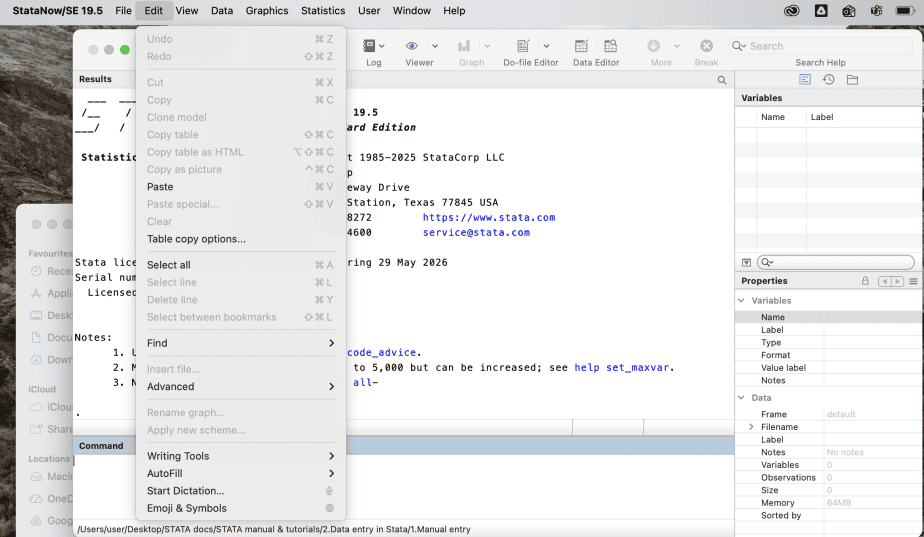
Go to Stata Toolbar and click on Edit, then click on Paste
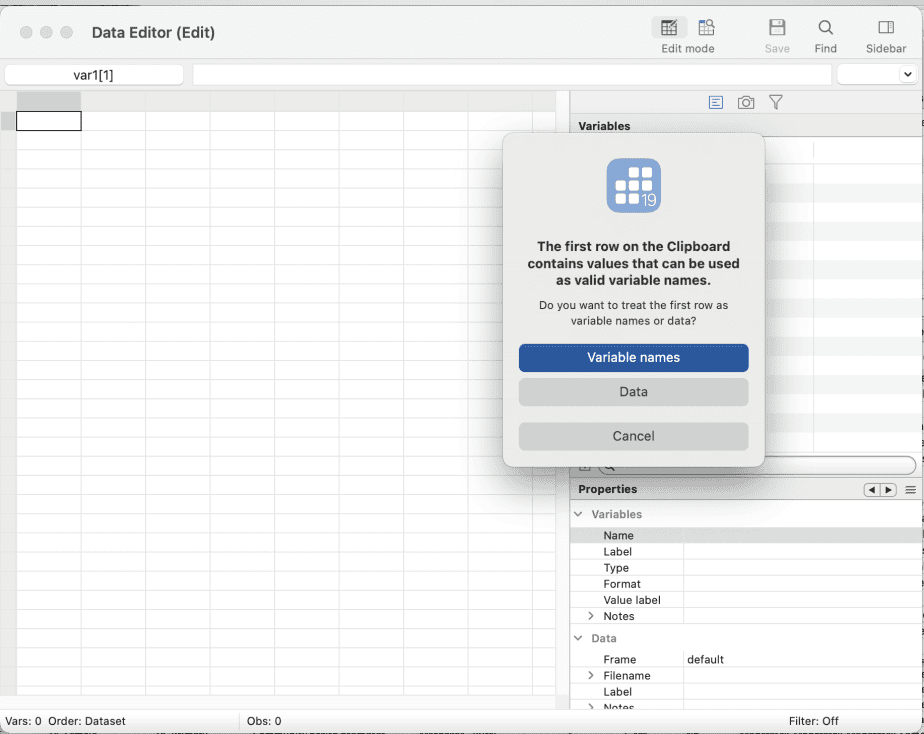
A pop-up message will appear asking you if you would like to treat the first row as the variable names or data. If the first row contains variable names, select the option variable names.
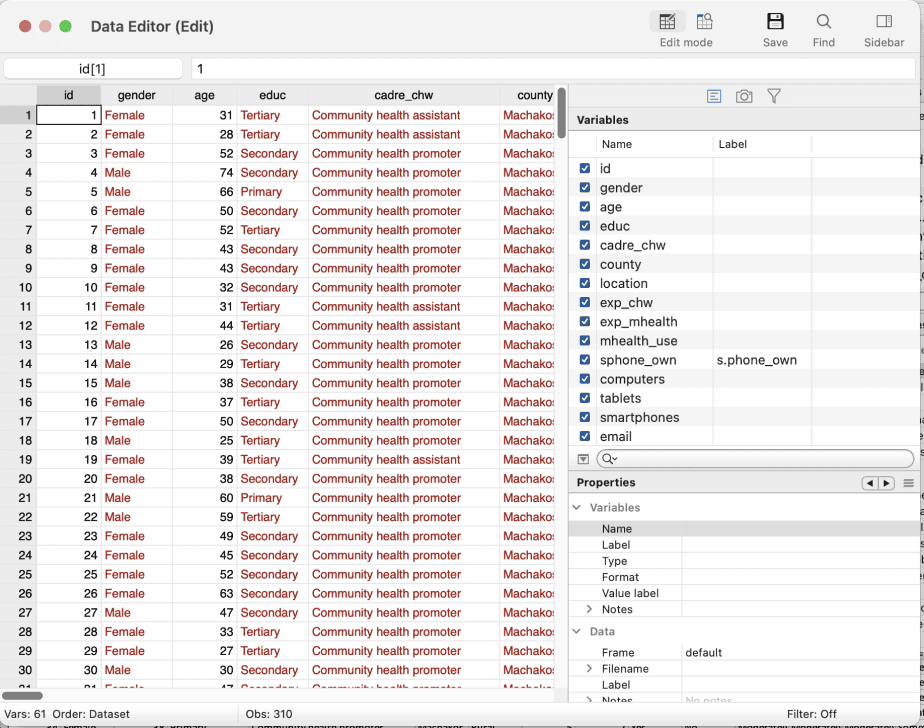
The data will now be pasted into Stata.
Understanding types of data in Stata
After entering data into Stata, the data will appear in either black, red or blue colours. It is important to understand what the different colours mean.
Black data represents numerical data (for instance, 1, 10, 100), which Stata can manipulate.
Red data represents string data, which cannot be manipulated (for instance, male and female).
Blue data represents data that has value labels attached to it (for instance, male=1, female=2).
In conclusion, there are several ways of entering data into Stata. This post has demonstrated manual data entry, data entry through importation from other programs, and data entry by copying from other programs and pasting into Stata.
Related Posts